This guide will walk you through the steps to change or update the password for your TrooTrax account.
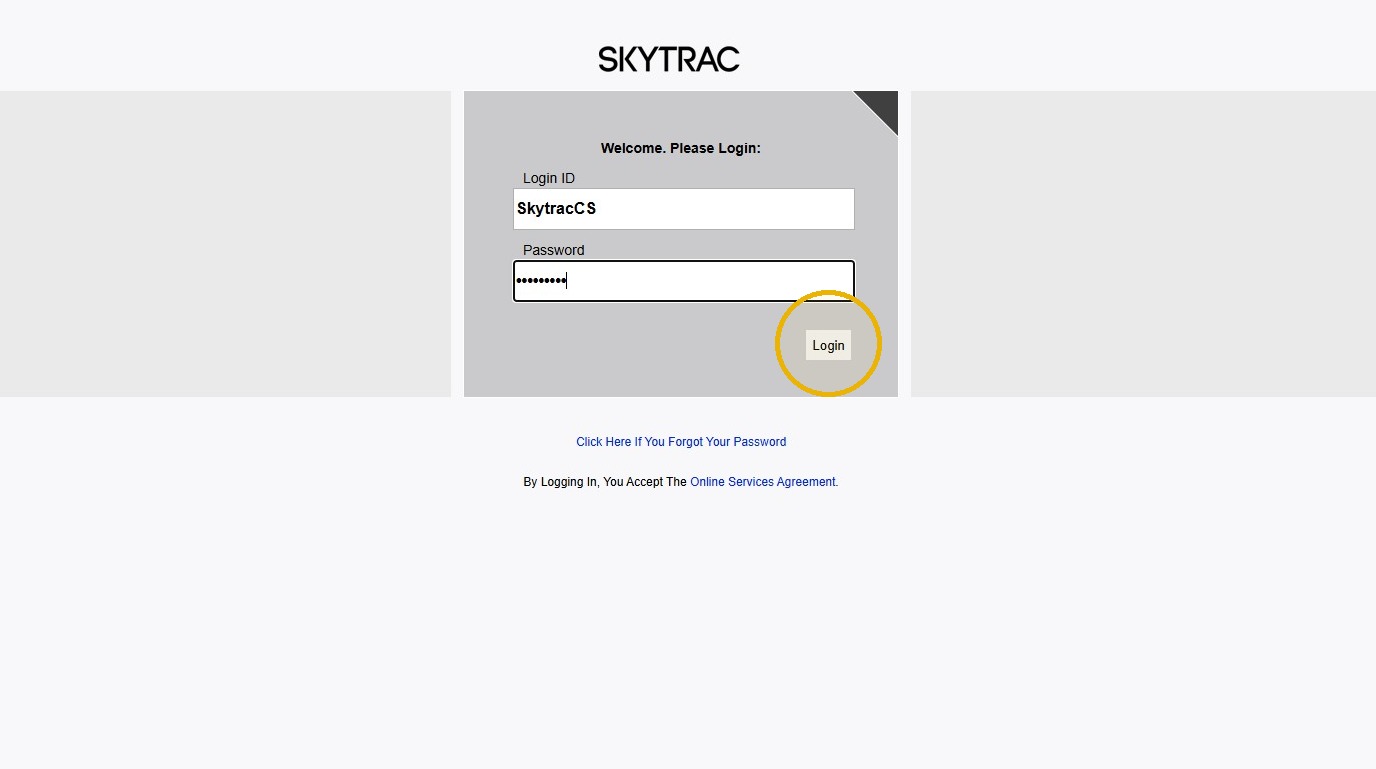
1. Login to your account with existing credentials.
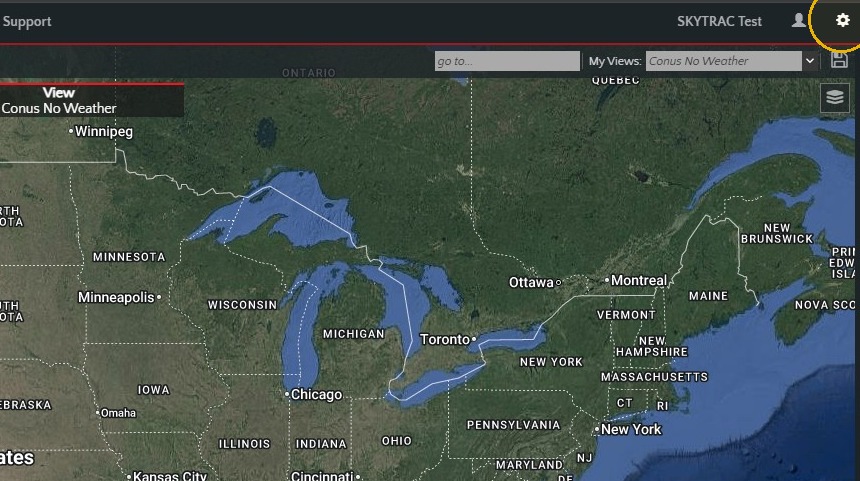
2. Once you log in, click the Settings (gear) icon located in the top-right corner of the page.
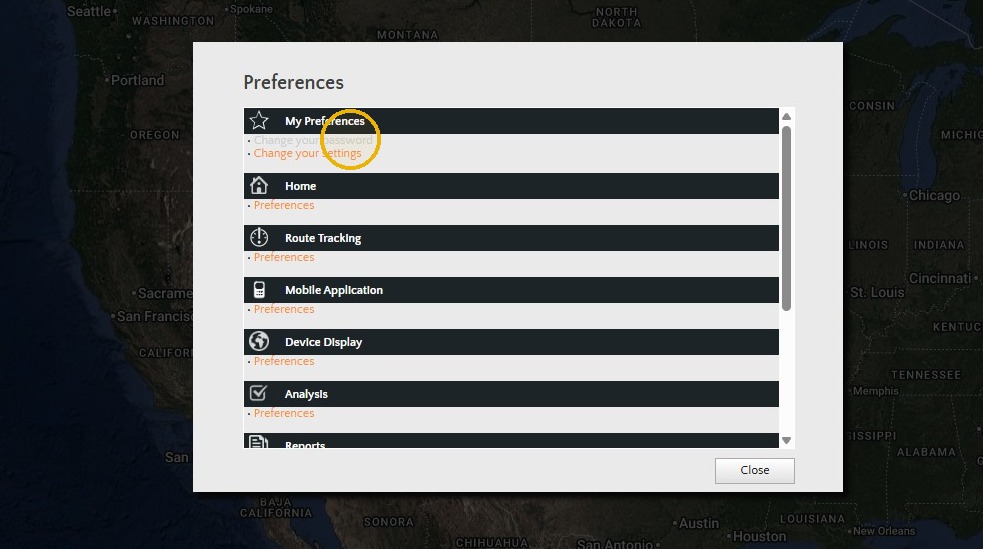
3. Under My Preferences, select Change Your Password.
4. Enter your new password, re-enter it to confirm, and then click Apply to save your changes.
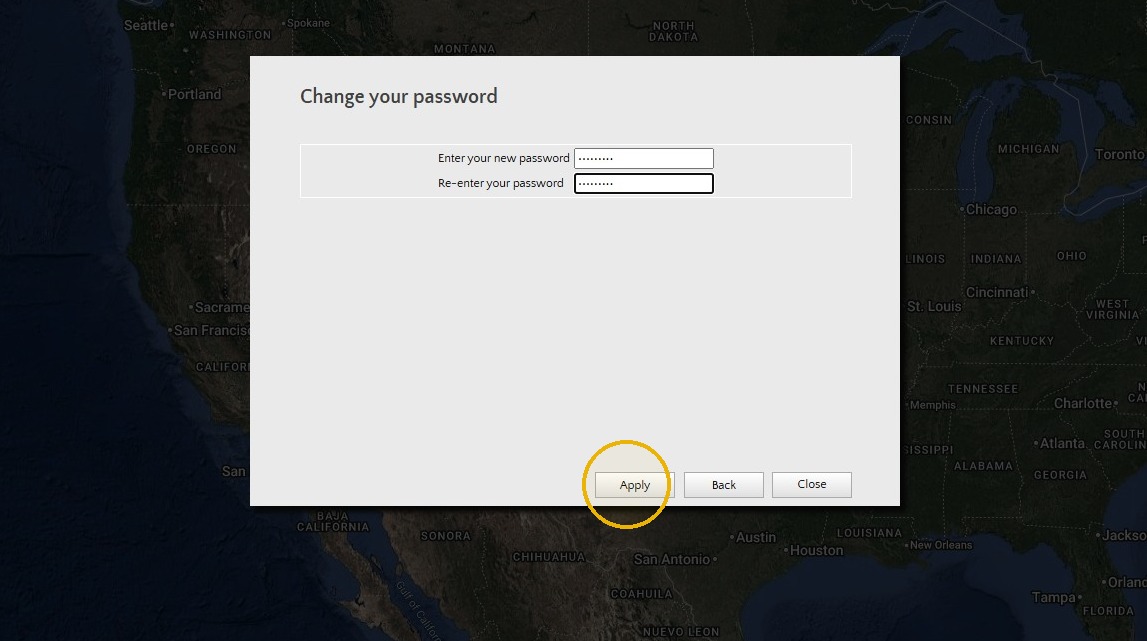
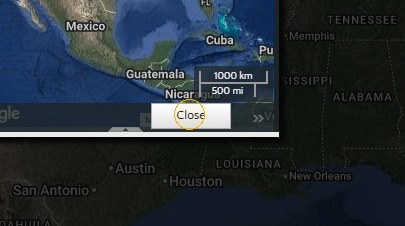
5. Once you see the confirmation message, click Close. Your password has now been successfully updated.
If you run into any issues or need further assistance, please contact our Support team at support@skytrac.ca.